
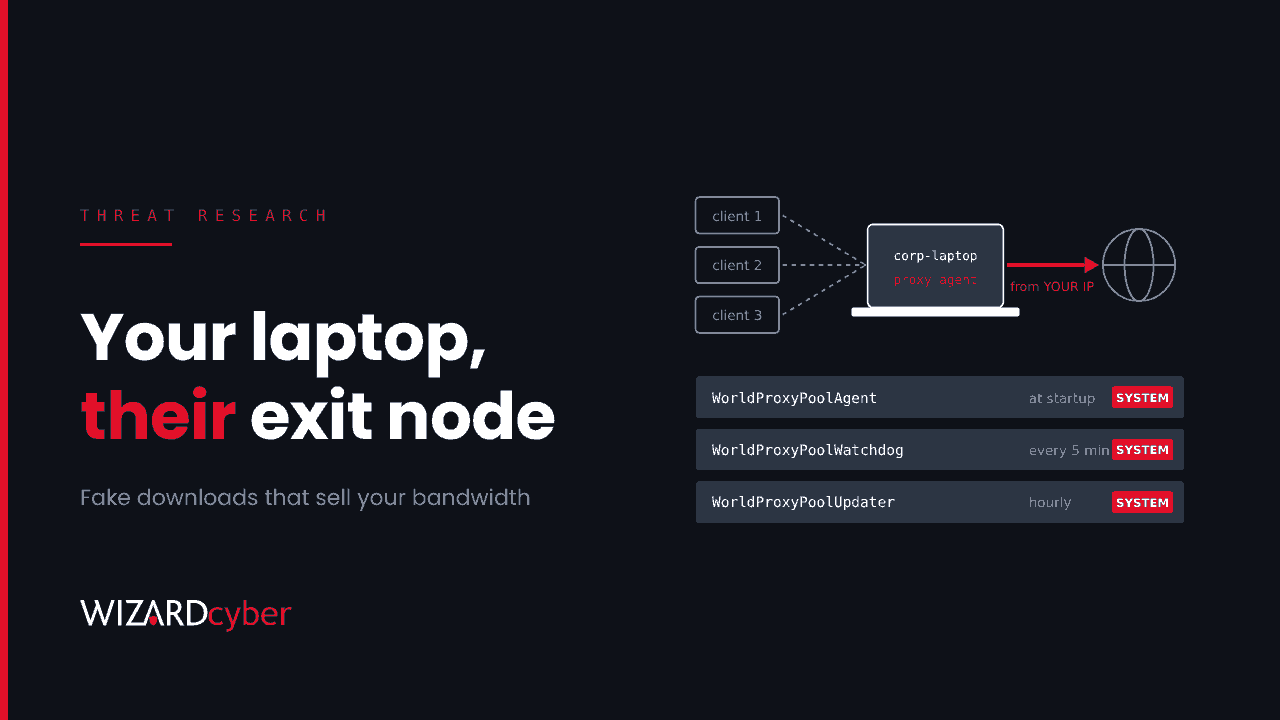
Someone in your organisation wants a free copy of a paid tool, a game mod or an "unlock" utility, and finds one. The installer runs, nothing obvious happens, and the user forgets about it. Underneath, a bundle of silent installers has just set up software that sells your device's bandwidth or compute to third parties, kept alive by scheduled tasks running as SYSTEM. On a corporate laptop, that means strangers' internet traffic leaving from your network.
Microsoft Threat Intelligence described the campaign on 3 November. It's not ransomware and it doesn't steal passwords, which is exactly why it gets closed as a nuisance alert. This post explains how the chain works and gives Defender queries for each stage.
What happened
The lures are fake installers for cracked commercial software, free games, activators, plugins, game "executors", driver and unlock tools, and unofficial utilities. They're built with Inno Setup, a common and legitimate installer framework, which is part of why they look ordinary.
Microsoft found that each installer session works through a list of "offers" and calls back to rotating domains to report whether each one ran. The offers are the money. Microsoft describes three branches:
- Proxyware, which routes third-party traffic through the device.
- Distributed compute, which installs volunteer-computing software and a virtualisation package to run workloads on the machine.
- Adware-style utilities, which install "window manager" and "updater" programs.
Microsoft doesn't give victim numbers or dates of first activity. It does describe the campaign as evolving, with domains rotating and several offer branches in each session.
Why this matters on a managed endpoint
On a home PC this is a slow machine and a bigger electricity bill. On a company device it is three separate problems:
- Your IP address is someone else's exit node. Proxyware lets paying customers send their traffic through your device. You don't know what that traffic is, and if it's abusive, it's your address in the logs and on the blocklists.
- SYSTEM-level persistence you didn't approve. The proxyware creates three scheduled tasks that run with the highest privileges, including a watchdog that restarts it. Software with that foothold and an updater can be told to install anything.
- Unknown software in your inventory. A virtualisation package or compute client nobody requested is a configuration and licensing problem as well as a security one.
It's the same pattern we covered in the Yoba fake AI app chain: a user looking for software outside approved channels, and a payload that looks low-impact but sits on a privileged foothold.
The chain, step by step
1. The fake installer
The user runs an Inno Setup installer named after the thing they wanted. It unpacks a temporary runner into a folder matching %TEMP%\is-*.tmp.
2. Staged offer executables
The runner starts numbered stages from that folder, with names matching eld*.exe and set_*.exe, plus files Microsoft lists as FirstFast[1] and SecondRunner[1].
3. Callbacks for each offer
For each offer, the runner calls a campaign domain with a fixed query-string pattern that includes d=inno and a result of offer_execution or offer_execution_fail. Each offer succeeds or fails on its own, so blocking one doesn't stop the rest.
4. Silent installs
Downstream installers run with silent switches such as /qn, /S, /quiet and /norestart, so the user sees nothing.
5. Persistence
The proxyware agent installs under C:\Program Files\WorldProxyPool\ and creates three SYSTEM tasks: WorldProxyPoolAgent at startup, WorldProxyPoolWatchdog running a hidden PowerShell script every five minutes, and WorldProxyPoolUpdater every hour.
Hunting in Microsoft Defender
Microsoft's post includes three hunting queries and Defender detection names, including Trojan:Win64/OfferLoader and Behavior:Win32/SuspInnoOffer.A!mapsi. The queries below follow the same logic and add persistence and inventory checks. Treat them as starting points to tune for your estate.
1. Offer callbacks from the installer
DeviceNetworkEvents
| where Timestamp > ago(30d)
| where RemoteUrl has "d=inno"
    and RemoteUrl has_any ("offer_execution", "offer_execution_fail")
| project Timestamp, DeviceName, InitiatingProcessAccountName,
          InitiatingProcessFileName, InitiatingProcessFolderPath, RemoteUrl
Full URLs aren't always captured for encrypted traffic, so an empty result isn't proof of absence. Use the domain query as well.
2. Staged executables running from Inno temp folders
DeviceProcessEvents
| where Timestamp > ago(30d)
| where FolderPath matches regex @"(?i)\\AppData\\Local\\Temp\\is-[^\\]+\.tmp\\"
| where FileName matches regex @"(?i)^(eld\d+|set_\d+|FirstFast(\[1\])?|SecondRunner(\[1\])?)(\.exe)?$"
| project Timestamp, DeviceName, AccountName, FolderPath, FileName,
          ProcessCommandLine, InitiatingProcessFileName, InitiatingProcessCommandLine
3. Connections to campaign domains
let CampaignDomains = dynamic(["orbittrack.cfd","prairielink.cfd","willowbox.xyz","stonestation.cfd",
  "foldlodge.xyz","friendsanchor.xyz","fallport.cfd","wishcourt.cfd","cratebase.cfd","belieftrack.cfd",
  "beliefdesk.xyz","companyharbor.xyz","signalpane.cfd","inkact.xyz","wishgrove.cfd"]);
DeviceNetworkEvents
| where Timestamp > ago(30d)
| where RemoteUrl has_any (CampaignDomains)
| summarize Connections = count(), First = min(Timestamp), Last = max(Timestamp)
          by DeviceName, InitiatingProcessFileName, RemoteUrl
Microsoft notes that a domain match on its own is a lead, not confirmation. The domains rotate, so expect this list to age quickly.
4. The SYSTEM scheduled tasks
DeviceEvents
| where Timestamp > ago(90d)
| where ActionType in ("ScheduledTaskCreated", "ScheduledTaskUpdated")
| extend TaskName = tostring(parse_json(AdditionalFields).TaskName),
         TaskContent = tostring(parse_json(AdditionalFields).TaskContent)
| where TaskName has "WorldProxyPool"
    or (TaskContent has "powershell" and TaskContent has "hidden"
        and TaskContent has "S-1-5-18")
| project Timestamp, DeviceName, TaskName, InitiatingProcessFileName, TaskContent
The second condition is a broader sweep for hidden PowerShell tasks running as SYSTEM. Expect some legitimate management tooling, and baseline it out.
5. Silent installs started by an installer from Temp
DeviceProcessEvents
| where Timestamp > ago(30d)
| where InitiatingProcessFolderPath has @"\AppData\Local\Temp\is-"
| where ProcessCommandLine has_any (" /qn", " /S", " /quiet", " /norestart", " /VERYSILENT")
| summarize Children = make_set(FileName, 20), Count = count()
          by DeviceName, InitiatingProcessFileName, bin(Timestamp, 1h)
6. Software nobody approved
DeviceTvmSoftwareInventory
| where SoftwareName has_any ("worldproxypool", "charityengine", "boinc", "virtualbox")
    or SoftwareVendor has_any ("worldproxypool", "charity engine")
| summarize Devices = dcount(DeviceId), DeviceList = make_set(DeviceName, 50)
          by SoftwareVendor, SoftwareName, SoftwareVersion
Some of these are legitimate products with real users, so check against what you have approved. On most corporate estates, the answer is "none of them".
If you find it
- Isolate the device and collect an investigation package before cleaning up.
- Remove persistence: the three scheduled tasks, the install folder and the uninstall registry key, then uninstall any other offer software the session added.
- Review what the session installed. Use queries 2 and 5 to list every child process from the Inno temp folder, because one session can install several offers.
- Check your egress. Look at firewall or proxy logs for unusual volumes or destinations from that device while the agent was running.
- Sweep the estate with queries 3 and 6. Colleagues often share where they found the "free" version.
Prevention
- Turn on potentially unwanted application (PUA) protection in block mode, along with cloud-delivered protection, tamper protection and SmartScreen reputation checks.
- Enable the Attack Surface Reduction rule that blocks executables unless they meet a prevalence, age or trusted-list criterion.
- Remove standing local admin rights. SYSTEM tasks and silent installs into Program Files need elevation.
- Audit scheduled task creation (Windows event 4698) and send it to your SIEM.
- Give people a legitimate route. If the tool they need is in Company Portal, fewer of them go looking for a crack. Our guide to shadow AI covers the same problem for AI tools.
How a managed SOC helps
- Nuisance alerts still get a verdict. An adware or PUA alert is easy to close without looking. Our SOCs are staffed 24/7, every investigation produces a full report, and senior analyst sign-off is the default on the managed service.
- Hunting across the estate. Complete and Command include a threat hunting allocation for sweeps like the ones above.
- Compromise assessment. If you think bundled installers have run widely, our consultants can trace what they installed and what it did.
If you'd like these hunts run across your estate, talk to our team.